Tag Archive | Stitch

Bosom Buddies

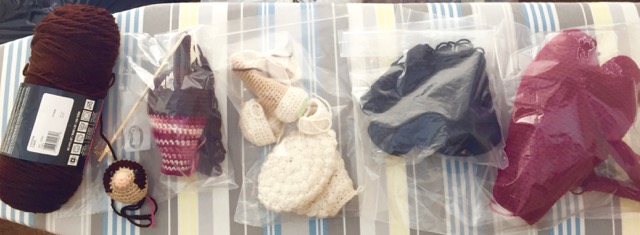
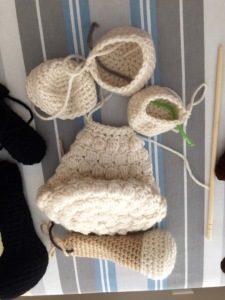
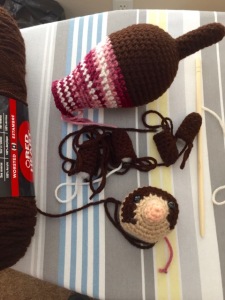
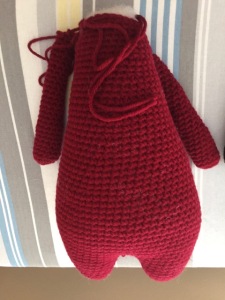
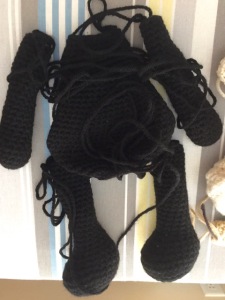
Who would have thought that a dog and a bird could be such good friends for so long. Luckily for all of us, Charles M. Schulz did and the completion on my current amigurumi simply reconfirms the fact that Snoopy and Woodstock are meant to be friends forever.

Due to my disappointment in the finished Woodstock, I almost did not finish the Snoopy pattern from the same author I had previously started before I made the Woodstock. I finally decided that it would not take much to finish Snoopy so I started crocheting. I found another error in the pattern count for a grand total of 4 miscounts I had to correct on the pattern. This really ruffled my feathers. I paid money for these patterns and expected the author to make every effort to have the counts correct.

 .

I would make some of the same changes to the Snoopy pattern that I would change on the Woodstock pattern. I would like his nose and arms longer. I like Snoopy’s feet much better than Woodstock’s feet, so I don’t know if I would change them as I would Woodstock’s feet. I disliked Snoopy’s neck as much as Woodstock’s neck until I attached Snoopy’s collar. Snoopy’s collar lifts up his head and hides the stitches at the neck. I thought about putting a collar on Woodstock to see if I would get a same effect, but decided that a collar on Woodstock just wouldn’t look right.

 .

Now that both amigurumi’s are done and they are sitting on my table side by side, I can finally say that I like my end results well enough. Alone, I do not like either pattern very well, but together they match and are very cute. The things that I see as a problem on each individually, are not there when they are posed together. I am so happy that I finished Snoopy so that Woodstock would have a friend and find his place in my heart.

Just Sewing It In

It sounds pretty simple of course, but it is not really. Let me explain. I spend a lot of my sewing time having epic battles with interfacing. A commenter to one of my posts of interfacing frustration said to stop using cheap interfacing or to use sew in interfacing rather than the iron on interfacing that I have been such a fan of for years now. Since the only stores I have to buy interfacing from are Joann’s or Walmart, I can only buy what they carry, and they seem to only have the cheap interfacing. I could order more expensive interfacing on line but I don’t know what I will get without seeing and feeling it first. With that, I decided to try some sew in interfacing on the next shirt that I made the husband.

.

 .

When it came time to cut out a new shirt for the husband, I grew leery of trying the sew in interfacing on his shirt so I decided to make a child’s shirt first and try it on that instead. I figured it was less fabric and interfacing wasted if it didn’t work out. I did not think that you needed to preshrink interfacing so I cut out the shirt and the interfacing and started to sew. I did preshrink the fabric before I cut as I always do. Later, I read online many horror stories of people not preshrinking their interfacing first and I panicked. I then proceeded to wash all of my sew in interfacing, cut, sewn or not. It did shrink a little in the washing and drying process, but probably not enough to make a difference on this small shirt. I do feel better now though about using the interfacing and not having to worry about it shrinking after the garment is finished.

.

.

As I basted the sew in interfacing to the fabric, I quickly learned that it was not as easy as I thought it would be. First, I tried using long stitches to baste the interfacing to the fabric but quickly learned that I liked smaller stitches better. When I remembered that pins are my friends, I found that rather than basting, I could just pin the sew in interfacing and the fabric together and I got a good result as I sewed, especially if the pieces were small. Next, I learned that you really have to watch the stretch of the fabric. You don’t want to let the fabric stretch as you sew it to the interfacing. They need to match and match flat. Keeping it flat was not as easy as it sounds either. For me, the fabric sewn to the interfacing wanted to bubble in the middle as I sewed the shirt together, which is what the basting or the pinning was not suppose to let happen. Argh!

 .

So, in conclusion, what I learned is that using sew in interfacing is a skill like any other with sewing. There is more to it than just sewing it in. Also, I learned that I need lots more practice with the sewing in of sew in interfacing before I can say I have mastered the skill.  So, I will keep sewing with it and learn this new skill of using sew in interfacing.

 .

P.S. The construction of the child’s shirt has been complicated, not so much because of the sew in interfacing but because of my inexperience and lack of skill in constructing a slit placket. I’ll talk more about that problem in a later blog post though.

Great, Kid. Don’t Get Cocky.

Remember the part in Star Wars when Luke blows up the tie fighter and yells, “Got ‘im. I got ‘im.” and Han Solo turns and says “Great, kid. Don’t get cocky.” I always hated that line from the movie. Why wasn’t Han Solo happy for Luke that he had blown up the tie fighter? I never understood Han Solo’s words until I sat at my sewing machine, stitching on the husband’s new bathrobe. After the successful sewing from the mystery boxes, a shirt that fits me great, the completion of two shirts that the husband likes to wear, two adorable kid’s sweatshirts from grey fleece, and then the  fit of the plastic bathrobe, I was feeling pretty cocky about my sewing ability. But, as I sewed together this bathrobe, I was knocked down a few pegs and I am now a lot more humble. Mama always said, “Nothing will teach you patience like sewing.”

.

 .

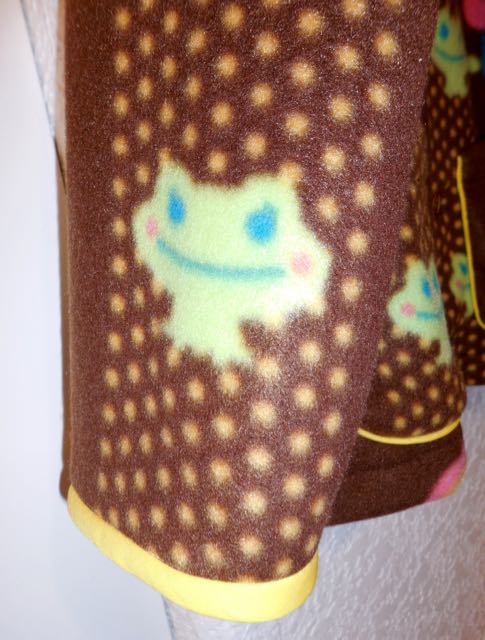
Let’s start at the beginning with the fabric. I went to Joann’s to get some buttons, but, of course, had to stop and see what was on sale that week. The husband is always good about going to Joann’s with me and as I looked at the fleece that was 50% off that week, he found a super soft, super fluffy, super stretchy fleece that he wanted his new bathrobe to be made from. Even though I could name you 3 pieces of fabric in the stash that I have purchased over the years to make him bathrobes with, and I am sure there is more than that I have forgotten about, we purchased enough of this fleece plus what remained on the bolt for the husband a new bathrobe. Crazy. Because it was 50% off, it wasn’t a bad price but I am sure that is was more than I paid for the pieces in the stash and that was why the pattern needed to be correct. I was going to cut right into this fabric instead of doing a muslin first and there couldn’t be any mistakes.

.

With the new bathrobe pattern complete, I started the cutting process. I was careful not to stretch the fabric as I cut. I have already learned that lesson when working super stretchy fabric. Next, I started to sew. I figured my sewing machine would not be too happy about stitching this fabric and that I might have to use my walking foot, but it did fine. On the other hand, my serger HATED this fabric. I spent a fair amount of good sewing time trying to get this fabric to serge properly. I finally got the tensions and the differential feed set to where the serging was acceptable and so I continued on.

.

.

After stitching and serging the shoulder seams, I attached the facing to the front of the bathrobe before the sleeves and side seams. Because of the serging problems, I was trying to minimize the use of the serger on this bathrobe, so decided to use the overcast stitch on my sewing machine to finish the edges of the facings. I really did not need to finish the edges of the facings because they are tucked under in the construction but I quickly noticed that the edges of this fabric pulled apart easily while working with it so I decided it was best to have all the edges finished. Overcasting took forever and it took two spools of bobbin thread to complete, but it did work and I got the facings sewn on. I then finished up the side seam and attached the sleeves. Wow, except for some detail work the bathrobe was done. Except I had missed one important part, fitting. And that is the reason why you sew the sleeves and side seams before the facings.

.

.

I had the husband try on the bathrobe and let’s just say I had gotten a little too cocky about the plastic pattern fitting correctly because it did not. The back neck line was way too low. I knew what I had to do, unpick the entire back facing and take in the shoulder which would lift the back up. If I had just tried it on him before sewing on the facings, this would not have been a big deal. I hate to unpick, but I knew it was the only correct way to fix this, so I got started. As I sat down to get started, I thought of Han Solo’s words that I previously thought were so cruel to Luke and realized that they were not cruel at all, and that he just wanted Luke to keep his head in the game and stay focused. That was something I needed to remember too. Stay focused.

.

 .

Unpicking this fabric is not impossible but darn near. I worked for several hours on it but I only had a couple of inches unpicked. I could not find my stitches in this super fluffy mess. So, since the husband wanted to wear this bathrobe in this life time, a new plan was formed and I decided to put a dart in the back of the neck to bring it up. I only had to unpick a little more to complete that part. It was not the best option, but it was a workable one and now that it is done, it looks fine.

 .

I then started the hems which required some unpicking of the facings. More grumbling was heard from me at this point. Plus, it took much longer to do the hems with the overcast stitch instead of serging them. Then came the belt and belt loops and finally the pockets which I ended up making three times to get the right size. Oh, brother!

.

Finally with the bathrobe completed I look back and see that I learned many things from the construction of this bathrobe. I just hope I with not have to relearn them as I continue my sewing journey, and that I keep my mind focused instead of getting cocky. Thanks for the advice Han Solo!

Black Bobbin Thread

It’s always the little things, isn’t it? The simple act of changing the color of bobbin thread used on an embroidery project made all the difference in the world and gave a perfect end result. I am so excited about this little change that made such a huge difference in my last project.

.

I wanted to put a simple black outlined design on my latest sewing project. I have used my machine to embroider red work a couple of times in the past. It has usually been a fight to get the tension just right so that the white bobbin thread is not pulled up into the design. I have even gone as far as to dab the white thread with a black sharpie pen to hide the white thread in the design before. For this design, I finally wised up and used black thread in the bobbin instead of white. This time when the bobbin thread pulled up into the design you could not see it. It blended in perfectly. The design came out rich and full and all in sharp black.

.

Excited about these results, I had to try it again so I grabbed a bib towel from the closet and stitched another outline design and the results were once again rich and full.

.

Now, why I did not think of using black bobbin thread years ago, I will never know. I have known since day one of embroidering that they make colored bobbin thread and that if your stitching a monogram on towels you can even use your top embroidery thread in the bobbin so the design looks stitched on both sides. But, it just never dawned on me until now to give it a try. I am so excited about the results that I plan to use a lot more black bobbin thread in the future. I am planning on using black bobbin thread on more than just outlined designs too. I plan to use it on all my dark designs and to even switch out bobbins on lighter colored projects when it is time to stitch the outline of the design.

.

Stay tuned for the results.

Sarah B

This is Sarah B. The B, of course, is for brachiosaurus. She is my latest completed amigurumi project.

.

Sarah’s pattern is from an old book my sister gave me. It was published back before the term amigurumi became popular. This book contains the pattern for 4 dinosaurs, with each patten having a larger adult version and an smaller baby version. I decided to make the adult brachiosaurus first.

.

When I first read the pattern, I thought to myself “No, way. This pattern is too weird.” But I decided to make some changes to the pattern and give it a try. The pattern called for two hooks with the main hook being a size K. I don’t know if I even own a size K hook, no less used one to make any amigurumi. Wouldn’t a larger hook make larger holes in the crocheting for the stuffing to come out of? To fix this, the pattern called for two strands of yarn to be used at a time. I have never done this before either. If I followed the pattern, it said that my brachiosaurus would be 27 inches long. What?!? That is over 2 foot long. I want a brachiosaurus, not a monsterasaurus. Plus I only had one skein of yarn in the color I wanted to use. About ready to fold up the pattern and say forget it, I decided to use a size H hook with 1 strand of yarn and see what I got. If I did not like the results, I would just abort the project.

.

So I got started with one of the feet, my H hook, and a single strand of yarn. I followed the pattern and got the cutest little foot, so I crocheted on. I followed the pattern and made 4 feet, the tail and the body. I continued to follow the pattern through the head to the neck. At the crook of the neck, the pattern calls for the rows to be half hdc and half slip stitches. I had a really hard time crocheting this part. Although I followed the pattern, if I make another brachiosaurus, I will modify this part of the pattern to make it easier to crochet. At first I was not sure how to crochet the head bumps and thought about just leaving them off, but I gave the pattern a try and they turned out to be very simple to crochet.

.

The eye lids were not that easy. The second hook the pattern called for was to make the eye lids. Since I had used a size H hook for the pattern, I got out my F hook for the eye lids. I followed the pattern and got an eye lid that was too short to curve around both eyes but too long for one eye. I undid this eye lid and made a shorter one to fit around just one eye. I did not like the height of this eye lid so, I started again, and just slip stitched across instead of sc. I liked the results in the height but length was still wrong. The next try was the charm. I got the length and the height I liked, so I made a second one the same way.

.

Unfortunately, one of the biggest challenges in making this brachiosaurus was the yarn. Well, to be fair, not the yarn but its dark blue color. I had difficulty seeing the stitches and had to turn on extra lights while crocheting and sewing. Certainly not the pattern or yarns fault, but disappointing to me none the less.

As mentioned on another post, the sewing together of this brachiosaurus was made much easier with pins, so the sewing together was not the dreaded chore it has been previously. I did spend some extra time on the details. I tried several different looks, head bumps no eye lids, eye lids no head bumps. I finally decided on both head bumps and eye lids. I embroidered her mouth and nose with black yarn as the pattern called for with the dark blue yarn but you could not even see what I had stitched. So I dug through the yarn stash and found this nice gold yarn to match the eyes and the end result is much better.

.

As I crochet an amigurumi, it takes on a personally all its own, sometimes quickly in the crocheting and sometimes not until the very end. From the first foot to the finally eye lid, this dinosaur turned out so cute and took on a feminine quality almost immediately. I struggled with this a little. Dinosaurs are boys, not girls, but Sarah is all girl and I have just fallen in love with her. I do not have a place to put her so I must find her a home, but I will have a more difficult time parting with her than some of the other amigurumi’s I have made.

Pin Obsession

As you already know, I am a pinner and I use lots of pins when I sew. I believe that it is worth the time to add a pin and get  good results, than to not pin and get sloppy results and then have to unpick and start again. So, why did it take me so long to start using pins with my crocheting?

.

I can’t take credit for the idea to pin together the body parts of an amigurumi as you sew it together. I saw that someone else had done this while browsing some websites. So, I decided to give it a try. The first amigurumi that I used pins on was Frankenstein’s hair. It worked out great. The pins held the hair in place and made it a lot easier to stitch it in place. But, why did I not use pins while sewing on the arms and legs? I’m not sure. Since I know the value of pinning, why was I not using my pins to my full advantage?

.

As I finished crocheting the body parts for my latest amigurumi, I began to dread the sewing together of the parts as I always do. As you are well aware, sewing the amigurumi together is my least favorite part of the process. Over time, the sewing together of the body parts has become easier as I have learned to take my time with the stitching, and have just gotten better at it with pure practice. This time, though, I have decided to pin each part together and then stitch. So far, as with Frank’s hair, it has made the sewing together of the parts easier and with better results. I would like to kick myself for one, not thinking of pinning in the first place, and two, not pinning parts together sooner. It really does help you keep the body parts where you want them as you stitch them together.

.

If you are going to give this a try, I will give you this advice, have nice sharp long pins and pin straight down. Unlike pinning fabric, where you pin parallel, amigurumi parts are pinned together perpendicular to each other. So, make sure your pin extends into both body parts you are stitching together.

.

With the sewing of the body parts almost done, I will soon be able to finish the details of this amigurumi and then the really hard part starts, what to make next.

Digitizing your own Embroidery Designs Part 3

If you missed Part 2 of this series, you can find it HERE!

.

Digitizing your own Embroidery Designs Part 3: Creating a digitized design using Bernina Artista Designer Plus Software

.

As I mentioned in my previous post I’ve tried most of the embroidery digitizing software out there over the last 10 years or so, and even after trying the latest greatest I always tend to come back to my stand by software, Bernina’s Artista Designer Plus. In this post I will take you step by step how I use it to create my own custom designs which are then stitched on my latest sewing projects.

.

Step 1: Get ready! Get set! Start your software! GO!

.

Do you have it up and going? Great! Here we go!

.

You will notice that when Artista starts up it will be in freehand stitch placement mode where you can just draw stitches or shapes in freehand mode. This is the mode most embroidery software starts in.

.

.

We need to change it to picture mode so we can load our previously touched up artwork and trace the bitmapped image using the auto trace tool. To do this click on the picture tab up at the top of the design screen. Then click on the icon in the left toolbar that looks like a flower coming out of a folder. This is the Load Picture tool.

.

.

When the file browser comes up you can select your touched up artwork saved in a variety of formats like BMP (Bitmap), JPG (Jpeg), PNG (Ping), etc. I will be using my Mickey Indy Graphic that I touched up in Part 1 of this blog series. Click on the one you want to digitize and then click the Open button in the file browser and your design screen should now look like this.

.

.

The next step is to use the built in Artwork Preparation Tool on the left toolbar as shown below. Once you click on it the Artwork Preparation window will pop up and show you the number of colors in your design as shown below. You want to choose an amount of colors that still gives you good detail of the design, but no more than necessary. I never use more than 16, but I usually try to stay around 4-8 colors if possible.

.

.

Once you choose your number of colors and click on ok Artista will decrease the number of colors and smooth any lines in your design it can. It will also create large single color blocks if possible. This will provide the auto digitizing function with less work to do in the next step.

.

The next step is to take your prepared artwork and use the auto digitizer tool to insert stitches over your artwork. To do this click on the Design tab at the top of your design window as shown below. Then click on the Select Tool in the left toolbar. Next click on the prepared artwork image on the right. This will select it so it can be auto digitized. To do that click on the AutoDigitizer Tool on the left toolbar. It looks like a paintbrush with multicolored paint on it. At this point you will see an AutoDigitizer window pop up where you can change your Fills and Details stitch types. I normally leave these settings at their defaults but you can use the different stitch types to create different looks for your designs. Choose your stitch types or leave at the default and click on the OK button.

.

.

Now you should see the bar at the bottom showing that the AutoDigitizer is creating the different stitch objects of your design. Once it has finished your design window should look like the screen below.

.

.

If you click on the Artistic View tab you should now see a 3D representation of your completed auto digitized design as shown below.

.

.

This is all looking pretty good at this point except you will notice that it automatically digitized the white background of the design. I don’t want this to stitch so it needs to be removed. So I click back on the Design Tab up at the top of the design window. Then I click on the object Select Tool on the left toolbar (it looks like a white arrow). Then I click on the edge of the portion of the white background and it will be selected and turn to a pink color to show it selected.

.

.

Then I just hit the delete key on my keyboard and POOF it’s gone! It should now look like the screen below.

.

.

You can click on the Artistic View Tab at the top again to make sure you are satisfied with the results. Now make sure and use the File/Save As menu option from the top to save your design. Artista offers several design formats to save to so choose the one your embroidery machine uses. I always save in the PES format since I have Brother machines.

.

.

That is it! You are all done! Now you can change thread colors or resize your completed design to make it larger or smaller or rotate it, mirror it, or whatever else you would like to do with it using the built in tools.

.

I hope you enjoyed this blog post series, I sure had a lot of fun creating it! Please let me know if you would like to see other topics covered or if you have any questions and I will do my best to answer.

..

If you missed Part 2 of this series, you can find it HERE!

Digitizing your own Embroidery Designs Part 2

If you missed Part 1 of this Series, you can find it here.

.

Digitizing your own Embroidery Designs Part 2: Which Digitizing Software should I use?

.

First let’s get a few things out of the way. The software you use to digitize your designs probably isn’t going to be a very important decision for you. At first glance this might come as a surprise. But the reason I say that is simple. Most of the embroidery machine manufactures usually have their own in house software done by the 2 or 3 major embroidery software creation companies that create the software so they will all pretty much work the same way and have most of the same features. So no matter what brand of embroidery machine you have, you can usually use whatever digitizing software you like or that suits you best for the job at hand. Now they will tell you that you have to use their software so that you have the proper hoop support or the right thread colors, etc. but that is all bunk. They are just trying to lock you into their particular product so that you always have to purchase their support, their updates, their supplies, etc. Don’t buy into their hype. I’ve been using a different manufactures brand software for my machines for over 10 years now without problems.

I have always only owned Brother embroidery machines (for why read this previous blog post),  but I dislike their PE-DESIGN embroidery software that comes with their machines. It’s seems too simplistic to me, and it will not allow me to do some things I like to do, the way I like to do them, so I use Bernina’s Artista (Now called Bernina Designer Plus) software instead. Why do I use this particular software rather than another? Well for me, it was because I spent a lot of time at different sewing machine stores trying out everything they had in software (digitizing software) and hardware (embroidery machines) before I purchased anything. What I found by doing this was that after using Bernina’s Artista, Brother’s PE-DESIGN, Husqvarna Viking’s 4D/5D, Janome’s Digitizer/Customizer, Pfaff’s Creative 4D/5D, Singer’s PSW (Professional Sew -Ware), and several others along the way, I just liked the way the Bernina Artista software worked the best. More than anything it fit the way I seemed to want to work. So many of the embroidery software packages I tried just kept putting up road blocks and getting in my way. The Artista software never seems to get in my way, it let’s me get in and get what I need done, get out of it and get on with actually stitching out the design on my machine.

Most of the embroidery software comes in what they call modules. What that means is if you want to do resizing you have to load a single program to do just that. But then say you need to change the colors or maybe digitize something? Well that will require that you close the program you are in and load another one instead. And you have to continue to re-load the same design into the different modules over and over again. That was a real pain in the keister! The Viking and Pfaff software really suffer from this since the same company makes them both. I think they have something like 14 modules in all to let you use all of the different features they offer. The Bernina Artista software has all of the modules built in to the same program and will allow you to switch modes by just clicking a button in the toolbar. Simple, reliable, and easy to learn. Bernina’s software is created by the world leader in embroidery software Wilcom, who also makes their own commercial software called Wilcom Embroidery Studio (Wilcom ES) for the big embroidery houses to which they happily charge $5000.00 PLUS for a license to use it. I’ve used a demo of the Wilcom ES software and I can’t see anything I’m missing in my Bernina Software.

Now I am sure many will disagree with my choice of software and will say how much they love this one or that one because of this or that feature. And I won’t disagree with them. I’m sure they love what they use. I am just telling you why I use the software I use. I’m not saying that it is better than one software or another, just that it works best for me.

.

I should mention at this point that I am an Apple Mac user and that most of my embroidery software is used on my Mac using Virtual Machine software running Windows XP. Unfortunately for us Mac users, there is very little native Mac compatible embroidery software available, and the Mac compatible software that is out there is VERY expensive and only for commercial embroidery designers. There are a couple of bright spots on the horizon though. A friend of mine, Matthias Arndt, in Germany has for the last few years, been creating a Mac compatible embroidery software capable of letting you resize, recolor, flip, convert designs between several different formats and much more. His software is called StitchBuddy. It still will not let you digitize designs but it may in the future. It’s shareware and can be tried before you buy it at a cost of $50. I was a beta tester for the early versions and I think it is coming along fine. He seems to add new features to it a couple of times a year. He also makes a Quick Look plugin and a Spotlight Importer which he provides for free to let you view your embroidery designs and search for them in the Mac’s Finder. All very, very cool tools and they have decreased my need to start up Windows on my Mac far less than I previously did.

One other company called BriTon Leap has recently started converting their Windows embroidery tools to the Mac, but they are close to 3 times the cost of Matthias’s Mac tools. Still they are much less expensive than something like PE-DESIGN or Bernina Artista, etc. They make a Quick Look Plugin called Embrilliance Thumbnailer, a design converter called Convert it, mac, and what seems to be the first steps of a full blown Mac compatible digitizer called Embrilliance Essentials. But before you get too excited, it currently will only allow you to digitize letters and do some simple design editing. A wonderful first step, but maybe a year or two away from being a true replacement for the current Windows only tools. They also have a demo that you can download to try out their software before you have to pay for it. Clicking on any of the links above will take you directly to their respective websites for more information on their products. I wish I could say I was making money by linking to them here, but I’m not. I’m just trying to help out some friends I believe in and pass the word to other Mac users.

.

Stay tuned for part 3 of this series where I will take you step by step through a typical (for me anyway) digitizing session where I take the touched up artwork I created in part 1 and convert it to a fully useable, stitchable design.

.

If you missed Part 1 of this Series, you can find it here. Part 3 of the Series is here.

Digitizing your own Embroidery Designs Part 1

Happy Fall Everyone! I thought I would give all my lovely readers something great to start Fall, the 1st of October (my favorite month) and the weekend with, so without further ado, here it is!

.

Before I start talking about the software used to digitize your own designs, and how to go about digitizing on your own, I need to talk about the first step in the process. And that step is getting the artwork, and then making it usable to be digitized. This is the most important step in the process, and if you do it correctly it will take the most time. The hardest part of the whole process is getting good artwork and tweaking it so that you will have no problems digitizing it using your choice of software later on. If you don’t do this step first your end results will most often end in frustration and disaster. I can not stress this point enough, if you don’t spend the time now getting your artwork in good shape before digitizing, you will spend hours and hours later trying to fix it.

.

Don’t try to use bad or low resolution clip art you have downloaded off of some website somewhere on the internet, you won’t like your finished results. Try to make sure your artwork is clean and in a medium to high-resolution format. I usually like to start with something at least in the 300×300 pixel size range. Of course if you have some camera ready artwork of 1200+ pixels in size you should be in great shape and you should get some excellent results without much tweaking. The lower the resolution the item you are trying to digitize is, the more work you will have to do up front getting it ready to digitize.

.

Of course you don’t need to have great camera ready artwork to start with. If you have a simple idea of what you want you can just sit down with a piece of blank white paper and sketch out a simple design of what you are trying to create. I’m no artist, so I usually try to use something that has already been drawn by someone else and go from there. But if you cannot do that, just sketch something simple onto a piece of plain white paper and either scan it in or take a photograph of your sketch to get it into your computer to get started on the cleaning up the bitmapped graphic before you begin the digitizing part.

.

Here are a few photos to show you what I am talking about in the good art department.

.

To the left is an original photo I found on the internet somewhere. I really wanted to use the Indy Mickey graphic for an embroidery design but I didn’t want to use the background since it is very complicated and it wouldn’t embroider well.

.

The first thing I did was extract Mickey from the background graphic. I won’t be describing the exact process or software I used to do this since almost any graphics editing software can do this. Do a search on the internet for ‘remove a background from a photo’ and you find several great articles and tools on how to do this. Of course the most common graphics editors used to do this are Adobe’s Photoshop and Photoshop Elements. They are great tools to use for this, but they are a little expensive in my opinion.

.

Once you have the graphic extracted from the background you should have something that looks like Image 1 below.

.

.

.

This is a good start, but it still needs to be edited by hand a little more to remove more detail before going any further.

.

The next step is an important one too. On most designs you will want a heavy black edge around the design so if you look closely at Image 2 you can see how I traced around all of the lighter lines around the border and the light grey colored areas to make them a thick dark black. This little bit of editing will give you a nice dark satin stitch around the border of your design once we get it digitized.

.

Here is my edited image a little further on in the process.

.

In Images 3 and 4 I am getting really close to the final bitmapped image that I will put into my digitizing software. You will notice that I have continued to edit the graphic until I have changed the hair and teeth on the golden idol to more solid colors rather than the individual fine lines that the original graphic had. I’ve also simplified the shoe strings and shadows on the shoes since at smaller sizes these would end up being unrecognizable blobs of knotted up thread.

.

In Image 4 you can see I changed some of the colors in the graphic to other colors that already exist in the graphic to reduce the number of thread colors I would need to use when digitizing the graphic. The fewer colors you have  in your bitmapped graphic once it has been tweaked, the easier it will be to get a good digitized embroidery design in the end. Most graphic editing software has a feature to reduce the amount of available colors in a graphic image. It’s best to reduce the image you are working with to 256 colors or less before trying to digitize it.

.

Well I hope that gives you a pretty good idea on how to get your original ideas, concepts and designs into your computer and get them into a condition that will work well for digitizing. The next step will be to get that graphic into your embroidery software and finishing the touching up and final digitizing of the design. I will cover that in my next how to: Digitizing your own Embroidery Designs Part 2.

.

Part 2 of this series is HERE, Part 3 of this series is HERE.

“Doomed” Fraying

I know I keep talking about writing some technical posts on how to digitize designs, but I am too excited about my new designs and have been playing with them rather than focusing on the technical aspects and getting them written down. So, don’t give up on those posts yet, they are coming but in the mean time, take a look at my steps to complete the Messenger Bag of DOOM!

Looking at the bag, I did not want to just stitch the design to the lid of the bag and have the back of the design show every time the  bag was opened. I thought about unstitching the lid of the bag from its lining so I would only be stitching on the top, but decided that was way too much work. Staring at my sample pieces of the designs, I decided I would try to make a patch to sew to the lid, leaving only a single stitch line on the underside of the lid. Commercial patches are made with a special merrowing machine that makes a sealed merrowed edge to keep the sides of the patch and the embroidery from unravelling over time. These are single purpose machines, and that is all they do. Because I don’t have have a need for such a machine very often, I think $3000.00 is a bit much to pay for such a machine. Therefore I would need to make my own edge.
.

A very long time ago, I tried to make a patch but had very little luck with the process. I embroidered a design and then statin stitched a frame around it. I then cut close to the statin stitches and used some seam 2 seam to attach it to my project. It was great at first, but over time the edges started to fray and the statin stitches started to fail. I was not really happy with the end result. I thought on the bag that I could statin stitch the patch directly to the bag and that my solve some of the problems, but I certainly am not skilled enough to free hand the statin stitches and because of the size of the designs, there was no way I could stitch it in with the embroidery machine. The thought of using a fabric paint around the edge was quickly discarded. Although there are projects just right for fabric paint, this bag is just not one of them. I feel it would have make the project look homemade. Returning back to the picture of the bag from Disney, I decided to try what they did, sew the patch on and then distress the edges.
.

Having never done a distressed edge before, I was not willing to test it out first on the bag and ruin it, so I grabbed a piece of fabric from my last shopping spree and cut out a size 3 sweat shirt. One of the nephews loves Indiana Jones as much as the little brother so a shirt would be great for him. I left about a 1 and 1/2 inch border around the design and then stitched close to the design edge, sewing the patch to the front of the shirt.  Then I started fraying the edges. After fraying for a little over 2 hours, I was getting no where. Discouraged a little, I cut some of the border off and started to fray from there. When I finally frayed down to the design, I could see just how much border I really wanted. After trimming some of the border and having a good start, the fraying went a lot easier and faster. So, what I learned was that when fraying an edge do leave a good border and don’t let the starting discourage you. The more you fray the faster it goes. After fraying, the design will need a “haircut” to get rid of split ends and long hairs. I am super pleased with the results even though I trimmed some spots a little too close to the designs.
.

I wanted to see how the design washed, so a trip to the laundry was the next step. After a washing and drying, the edges of the design curled around the design. I like the curl except that it covers the edge of the design a bit. So, I learned that when stitching the design down to not stitch quite so close to the edge  leaving a place for the curl.

.

Excited by the results of the sweat shirt, I sewed the design I was going to use to the bag and started to distress the edges. When I took a break from fraying, I decided to iron the sweat shirt’s design and learned that I should have used something under the design to keep it flat to the shirt like some adhesive spray or seam 2 seam. Augh! The bag also needed this too. So, to help this problem, I stitched in the ditch around some of the center parts of the design. When I stitched the design to the bag, I left a border for the curl and I left the frayed edges longer. I am not going to wash the bag myself, but I am sure that will happen sometime in the future when it gets dirty, so I have ruffed up the fray edge to give it a more worn look.

.

As always, sewing is a learning process. I have learned a great deal from both the sweat shirt and the bag. I am very pleased with the end result and will happily apply another patch with a distressed edge to any project as it give it a cool worn look that is very in style these days. Hopefully the nephew and the brother like the end results as well.